

Embed your form
Embedding puts your form right on your own site, so people fill it in without leaving your page. It works on any site where you can paste HTML.
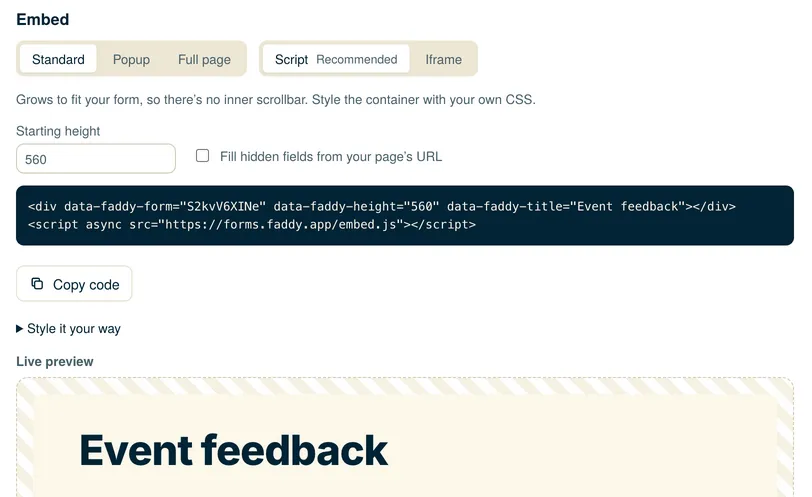
Get the code
- Publish your form, then open its Share tab.
- Under Embed, pick how it should appear (see below).
- Pick Script (recommended) or Iframe.
- Click Copy code and paste it into your page where the form should go.
A Live preview under the code shows the form as it will look.
Ways to embed
- Standard: the form sits inside your page and grows to fit, so there’s no inner scrollbar. Set its Starting height for the moment before it loads.
- Popup: a button that opens the form over your page. See Popup forms.
- Full page: the form fills the whole window.
Use the Iframe code only if your site doesn’t allow scripts.
Pass data from your page
Tick Fill hidden fields from your page’s URL to hand your page’s link values, such as ?source=ad, to the form’s hidden fields.
Style it your way
Open Style it your way under the code for the classes and CSS variables you can use around the form: the container’s width and height, and the popup’s button, overlay and size. They’re safe to use and won’t change. It also shows how to react when someone submits, with the faddy:submit event, and how to open a form from your own code:
document.addEventListener('faddy:submit', (e) => console.log('Sent', e.detail.id));
Faddy.open('FORM_ID', { hidden: { email: 'ada@example.com' } });
Inside the form, the look comes from Customize and Custom CSS.